
In Scrolling Table – Part 1 we looked at a technique for getting a scrolling table with a static header row by using two tables and hiding content in each. In this part we’ll look at a more efficient approach to the same problem.
To start either continue with the project from Part 1, or you can obtain it here.
An alternative approach to using duplicate tables, is to create a custom control which will do the magic for us. Let’s create a new class called ScrollingTable which extends LinearLayout:
[java] package com.stylingandroid.ScrollingTable;import android.content.Context;
import android.util.AttributeSet;
import android.widget.LinearLayout;
public class ScrollingTable extends LinearLayout
{
public ScrollingTable( Context context )
{
super( context );
}
public ScrollingTable( Context context, AttributeSet attrs )
{
super( context, attrs );
}
}
[/java]
We can now wrap our two tables inside this control. Note how we no longer duplicate the data, the first table contains only the header, and the body contains only the body data:
[xml].
.
.
[/xml]
If we run this, it will produce the same as before when we did this at the beginning of part 1: We get the scrolling behaviour that we require, but the columns do not line up correctly:
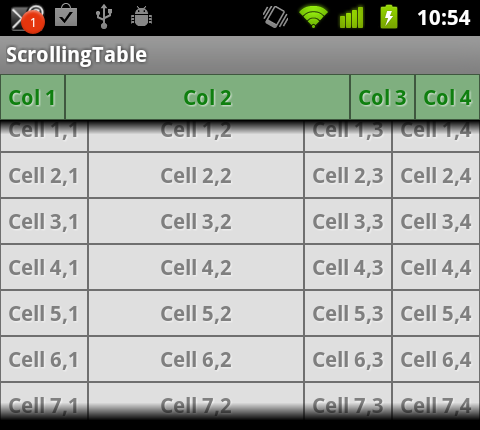
Now comes the custom logic. We override the onLayout() method of ScrollingTable:
[java] @Overrideprotected void onLayout( boolean changed, int l, int t, int r, int b )
{
super.onLayout( changed, l, t, r, b );
List
TableLayout header = (TableLayout) findViewById( R.id.HeaderTable );
TableLayout body = (TableLayout) findViewById( R.id.BodyTable );
for ( int rownum = 0; rownum < body.getChildCount(); rownum++ )
{
TableRow row = (TableRow) body.getChildAt( rownum );
for ( int cellnum = 0; cellnum < row.getChildCount(); cellnum++ )
{
View cell = row.getChildAt( cellnum );
Integer cellWidth = cell.getWidth();
if ( colWidths.size() <= cellnum )
{
colWidths.add( cellWidth );
}
else
{
Integer current = colWidths.get( cellnum );
if( cellWidth > current )
{
colWidths.remove( cellnum );
colWidths.add( cellnum, cellWidth );
}
}
}
}
for ( int rownum = 0; rownum < header.getChildCount(); rownum++ ) { TableRow row = (TableRow) header.getChildAt( rownum ); for ( int cellnum = 0; cellnum < row.getChildCount(); cellnum++ ) { View cell = row.getChildAt( cellnum ); TableRow.LayoutParams params = (TableRow.LayoutParams)cell.getLayoutParams(); params.width = colWidths.get( cellnum ); } } } [/java] This code is relatively straightforward. The code expects there to be two child TableLayout elements with the IDs R.id.HeaderTable and R.id.BodyTable. The first for loop looks at each cell in each row and builds a list containing the width of each column. Then the second for loop sets the width of each cell in the header to match those of the we obtained previously.
If we run this, we’ll see exactly the same behaviour as the previous solution, but without the duplication:

This is a much more elegant solution than before, and the data can be dynamic (and you can add rows programmatically) because the structure is inspected each time a layout is performed on the control. There is, however a potential problem with this: If one of the header cells is longer than all of the body cells in that column, then this will not be correctly factored in. There is an obvious solution to this, we simply duplicate the header line in the body table, with 0dp height as we did in Part 1. Although this means that there is some duplication, it is only a single row, and not a duplication of the entire table as was previously the case. Alternatively, we could add some additional logic in our onLayout method to handle this.
While this seems to be working, there is one use-case which isn’t covered: When we use android:layout_span to force a cell to span multiple columns. In the final part of this article, we’ll add support for column spans in to our solution.
The source code for this article can be found here.
© 2011, Mark Allison. All rights reserved.
Copyright © 2011 Styling Android. All Rights Reserved.
Information about how to reuse or republish this work may be available at http://blog.stylingandroid.com/license-information.


Thanks!
Hi Mark, you stated here that you no longer have duplicate data in the layout.xml, but I see 4 TableLayout elements in your xml in the sources you linked to here: https://github.com/StylingAndroid/ScrollingTable/tree/Part2
Look again. In main.xml there are two separate instances of the scrolling table – the first corresponds to the examples in part 1 of the series, and the second corresponds to part 2. In the second instance there is no duplication.
Aha, I see now. Thanks for the clarification, and the great tut!
Hi, I found one problem in sample,
Same application i try to run AVD Android 2.1
then Header column width not set properly,
In OnLayout Method Herder width set properly but on Screen is not show proper.
Hi,
I’m trying to do the same, but to create TableLayouts dynamically and i have some problems assigning widths; seems that i need one event that fires when the layout is fully rendering.
Have you had any problems like this??
I have this problem too.. any help ?
Any body answer me Why above sample not work properly in android 2.1
Android 2.1 does not support match_parent
That is correct. But if you look at part 1 of this series, it is clearly stated that the code is written for 2.3.3.
To get it to work in 2.1 all you need to do is change match_parent to fill_parent.
In Part 2, how do you reference table layout? In part 1 you used setContentView but in Part two there is no such call. Am I supposed to modify or use ScrollingTableActivity from part 1?
Kind of working, but now I have two scrolling lists in my application. The one on top works likes the example then below that I see the green header and a blank row, then more table columns. Still don’t understand the us of main.xml. And what am I do do with the layout called problem.xml?
Great and very useful article.. Thank you from Italy
Good article!
How can I create rows dynamically?? It doesn’t work for me, help!
THANKS!
In my case, i was using android 21 and trying to build scrollable table as mentioned in this blog.
width of data row and width of header row were different.
So i am supposed to add following line in ScrollingTable.java
cell.requestLayout();
After that the changed width started reflecting in properly.
Code in ScrollingTable.java looks like as below:
public class ScrollingTable extends LinearLayout {
public ScrollingTable( Context context )
{
super( context );
}
public ScrollingTable( Context context, AttributeSet attrs )
{
super( context, attrs );
}
@Override
protected void onLayout( boolean changed, int l, int t, int r, int b )
{
super.onLayout(changed, l, t, r, b);
List colWidths = new LinkedList();
TableLayout header = (TableLayout) findViewById( R.id.HeaderTable );
TableLayout body = (TableLayout) findViewById( R.id.BodyTable );
//Iterate over all columns in header of table for cell width
for ( int rownum = 0; rownum < header.getChildCount(); rownum++ )
{
TableRow row = (TableRow) header.getChildAt( rownum );
for ( int cellnum = 0; cellnum < row.getChildCount(); cellnum++ )
{
View cell = row.getChildAt( cellnum );
Integer cellWidth = cell.getWidth();
if ( colWidths.size() current )
{
colWidths.remove( cellnum );
colWidths.add( cellnum, cellWidth );
}
}
}
}
//Iterate over all columns in body of table for cell width
for ( int rownum = 0; rownum < body.getChildCount(); rownum++ )
{
TableRow row = (TableRow) body.getChildAt( rownum );
for ( int cellnum = 0; cellnum current )
{
colWidths.remove( cellnum );
colWidths.add( cellnum, cellWidth );
}
}
}
}
//Assigning calculated width to header of table
for ( int rownum = 0; rownum < header.getChildCount(); rownum++ )
{
TableRow row = (TableRow) header.getChildAt( rownum );
for ( int cellnum = 0; cellnum < row.getChildCount(); cellnum++ )
{
View cell = row.getChildAt( cellnum );
TableRow.LayoutParams params = (TableRow.LayoutParams)cell.getLayoutParams();
params.width = colWidths.get( cellnum );
cell.requestLayout();
}
}
//Assigning calculated width to body of table
for ( int rownum = 0; rownum < body.getChildCount(); rownum++ )
{
TableRow row = (TableRow) body.getChildAt( rownum );
for ( int cellnum = 0; cellnum < row.getChildCount(); cellnum++ )
{
View cell = row.getChildAt( cellnum );
TableRow.LayoutParams params = (TableRow.LayoutParams)cell.getLayoutParams();
params.width= colWidths.get( cellnum );
cell.requestLayout();
}
}
}
}
Thanks to author and for Manish Mishra’s comments.
After using method “cell.requestLayout();” everything works properly!
But, on my opinion, this implementation leads to hidden problems. For example, if we put 500 rows to the body it will effect the perfomance, becouse of too much views on layout. Any case, thanks a lot for offer