
In the previous articles in this series we have looked at LinearLayout, TableLayout, and RelativeLayout. In this concluding part, we’ll look at FrameLayout, which is arguable the simplest of the basic layout types, but can be extremely useful.
When we looked at RelativeLayout, we encountered a problem when trying to align to the bottom of a RelativeLayout with android:layout_height=”wrap_content”. FrameLayout allows us to overcome this problem. Aside from setting margins and padding, FrameLayout provides a single mechanism for positioning children within it: layout_gravity which is similar to the align to parent attributes in RelativeLayout. By setting this value we can control where the children are positioned within the layout:
[xml][/xml]
As you can see, gravity values can be combined with the “|” symbol. I won’t bother to explain each of these, as I think that they are fairly self-explanatory. If we run it we see:
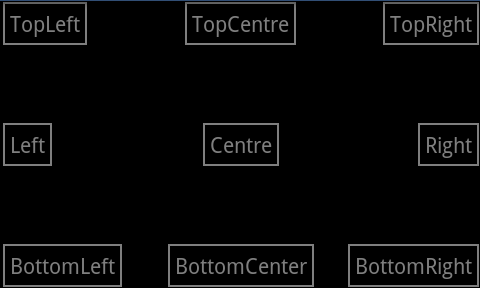
It is worth mentioning that LinearLayout also supports layout_gravity and the usage is identical to how we use it for FrameLayout.
One major difference should be apparent with RelativeLayout: we can align to the bottom, even though the FrameLayout has its height set to wrap_content. This is because the order in which the layout and children’s sizes are calculated is different to RelativeLayout. Moreover, and this is a key factor in what makes FrameLayout useful, the size of the FrameLayout is the size of its largest child (plus padding). You can specify whether or not FrameLayout should include children whose visibility is set to GONE by calling setMeasureAllChildren() or through the android:measureAllChildren attribute in XML. The default is to only measure children whose visibility is set to VISIBLE or INVISIBLE.
The problem with FrameLayout is that the layout behaviour becomes somewhat difficult to understand if it contains multiple children (the documentation for FrameLayout states that scalable layouts using FrameLayout can be tricky). However, our old friend LinearLayout also supports a similar behaviour, and we can use this to solve another common problem: Where we have two View objects, one of which has a variable height, and we want the height of the second view to match the height of the first. For example, we have a TextView which contains text of variable length (and so the height may vary when the number of lines of text changes) and we have an ImageView containing either a 9-patch or shape drawable which we want to dynamically match the height of the TextView. We can certainly achieve this programatically, but we can achieve the same thing purely in layout:
[xml][/xml]
This uses a very simple shape drawable in res/drawable/line.xml:
[xml] ?xml version=”1.0″ encoding=”utf-8″?>[/xml]
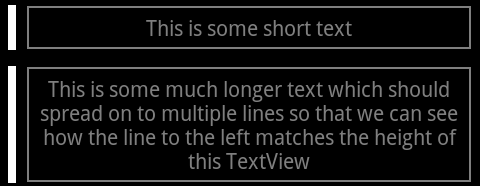
The parent LinearLayout has it’s layout_height set to wrap_content, the TextView’s is also set to wrap_content, and the ImageView’s is set to match_parent. As we can see, this causes the ImageView‘s height to match that of the TextView:
That concludes or tour of the basic layout types in Android. If you are wondering why I haven’t covered some other types such as Gallery, GridView, and ListView it is because I am focussing purely on the layout, which is the purpose of this series. These advanced controls are data-bound widgets which build on top of these basic layout mechanisms and will be the subject of future articles.
The source code for this article can be found here.
© 2011 – 2014, Mark Allison. All rights reserved.
Copyright © 2011 Styling Android. All Rights Reserved.
Information about how to reuse or republish this work may be available at http://blog.stylingandroid.com/license-information.


Hi Mark,
I´ve met you at the AndroidConf Brasil, and I was taking a look at you blog, to get some layout tips, when I got an error at the “layout_gravity” image. “Botton Left” text is positioned at the both sides, left and right. Take a look on that later… 😉
Regards,
Wallace Espindola.
Hi Wallace,
AndroidConf was amazing – I had such a great time, and really enjoyed meeting lots of cool Android developers.
Thanks for spotting the error – it should be fixed now.
Best regards,
Mark